
HomePod and hands-free use: turn it on without getting up, send a message, receive an alert
 Anthony7 min read
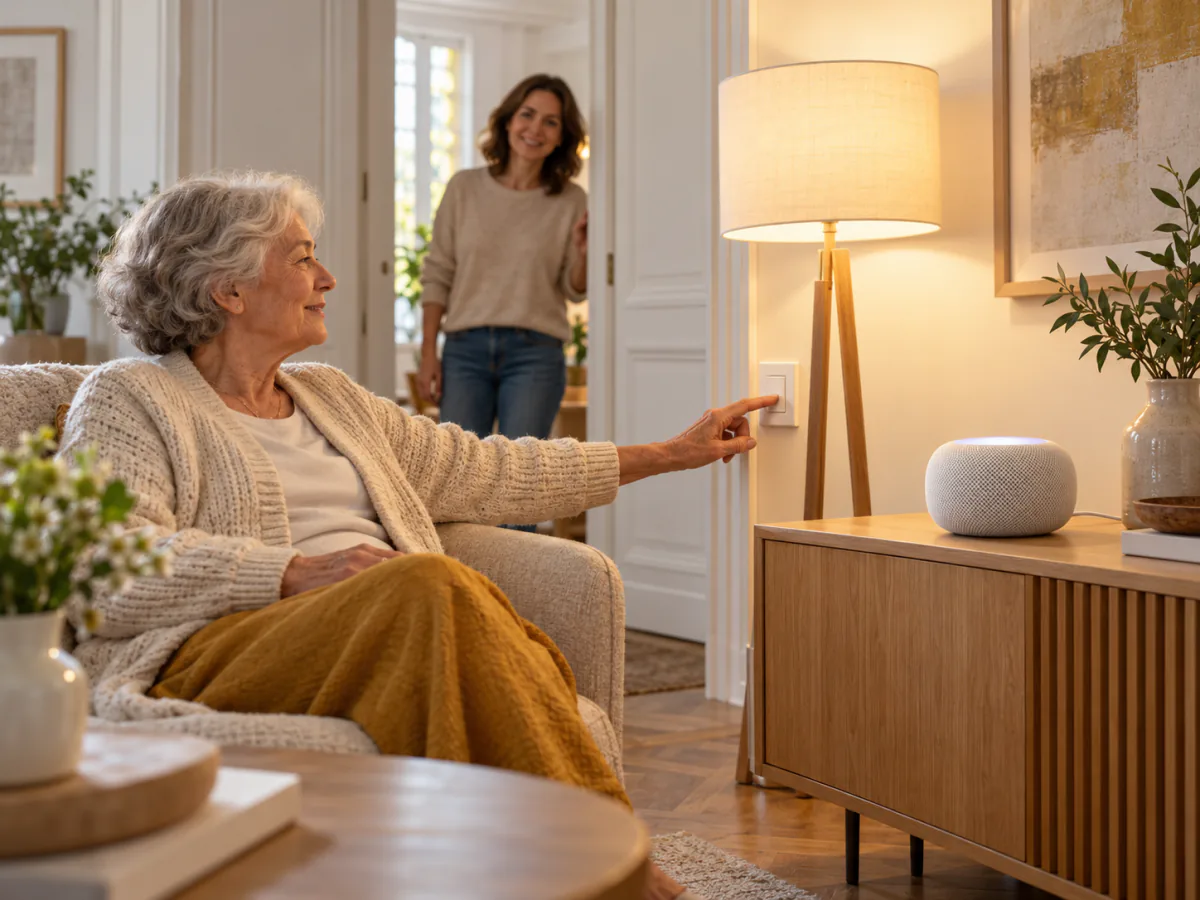
Turning on the light without having to look for the switch can be more important than a new home automation control panel. For someone who has difficulty moving around, talking to a speaker from their armchair is sometimes easier than crossing the room. But this hypothetical scenario says nothing about the reliability of a call for help. The HomePod can make some household tasks more accessible; however, alerting a loved one and getting an urgent response require separate devices. To determine whether it truly helps in a household, you must start with the need, then check the device, the connection, the person receiving the alert, and the emergency plan.
Three Uses to Try at Home
The HomePod isn’t a one-size-fits-all solution. Its value depends on specific, repetitive tasks. A light can respond to a voice command; an Interphone message can be sent to authorized devices in the home; and sound recognition can alert you to the sound of a smoke or carbon monoxide detector. These are three different mechanisms, each with its own set of dependencies.
| Need | What the HomePod Can Do | Things to Check Before Relying on It | Key Limitation |
|---|---|---|---|
| Turn on a light without getting up | A Siri command can control compatible lighting already set up in Home. | The light switch, light bulb, or module must be compatible; the command must be recognized from the person’s usual location. | A power outage, a disconnected accessory, or a misrecognized command makes the light inaccessible via this method. |
| Talk to someone in the home | Intercom allows you to broadcast a message to HomePods and authorized devices. | The person must be able to receive messages, have notifications enabled, and know how to respond. | Intercom broadcasts a message within the home; check that a family member hears it. |
| Be alerted to an alarm sound | Sound recognition can send a notification to an iPhone, iPad, or Apple Watch. | A compliant smoke or carbon monoxide detector must already be installed; settings, recipients, and notifications must be tested. | Apple expressly excludes the use of this feature as protection for high-risk or emergency situations. |
This checklist distinguishes real convenience from a promise of safety. It also helps you avoid an unnecessary purchase: if the primary need is to trigger assistance in the event of a fall or medical emergency, the three features above do not meet that need.
Turn on the light without getting up: test the command in a real-life situation
Saying “turn on the living room light” can save a trip. However, the person must be able to make themselves understood by Siri from wherever they are. Test it using their own words, at a normal volume, with the door open and then closed, and while the TV is on. Repeat the test from other rooms and in noisy environments to see how well Siri understands this person’s commands.
Voice control also depends on accessories. The HomePod doesn’t make an ordinary lamp compatible just by being there. The initial setup of the HomePod requires an iPhone or iPad on the same Wi-Fi network, Bluetooth enabled, and up-to-date software. To turn on the lamp afterward, you’ll need a HomeKit- or Matter-compatible light fixture, configured in Home, and a power source. However, the person who uses voice commands on a daily basis does not need to own the device used for setup. Keep a physical control that the person can use. An automation can simplify a task; it should not make that task impossible when Siri makes a mistake or the network goes down.
Accessibility isn’t the same for everyone. Voice control can help someone who has difficulty operating a phone but may be a hindrance to someone whose speech varies or who doesn’t want to be heard in the home. So the right question isn’t “Is the HomePod accessible?” but “Can this person complete this task in this room, with an alternative method available if it fails?”
Intercom connects rooms, but doesn’t guarantee a response
The Intercom feature described by Apple lets you send and receive messages from a HomePod or HomePod mini and certain Apple devices. A family member can announce their arrival from another room; the person can respond without having to reach for their phone. Messages can be sent between HomePods and HomePod minis, as well as to authorized iPhones, iPads, and Apple Watches in the home, depending on Intercom settings. This is a tool for in-home communication, not a remote assistance service.
Setup is just as important as the message itself. The owner or an administrator selects authorized members and speakers, and notifications on recipient devices can be configured. Test the system thoroughly: send a message from your usual room, check what the family member receives, and then have them reply. Repeat the test when their phone is locked and when the family member is away from home. If the recipient doesn’t hear the message, if notifications are turned off, or if the message is sent to all rooms instead of just one, fix whatever is preventing the exchange, then test it again before relying on this feature.
For urgent requests for help, Interphone leaves an unavoidable uncertainty: it can transmit a message, but it does not guarantee that a person will receive it or take action. Make separate arrangements for a means of calling for help or sending an alert that is appropriate for the situation.
HomePod notifications complement the alarm
Apple states that HomePod sound recognition can detect the sound of a smoke or carbon monoxide detector and notify an iPhone, iPad, or Apple Watch. The HomePod is therefore not the detector itself: it listens for an alarm that is already sounding. Apple also specifies that this feature should not be used in situations where injury is possible, nor in high-risk or emergency situations. This caution must be kept in mind when making any decision regarding setup.
Sound Recognition requires the HomeOS architecture to be up to date. If the household enables this feature, verify the HomeOS architecture, the selected HomePods, and the devices that are actually receiving notifications. Test the detector according to its instructions, without waiting for an actual alert. If the only configured recipient device is turned off or offline, the notification may not arrive via that channel. Even if received on a phone, it may go unnoticed if the family member isn’t carrying it; technical reception, perception of the alert, and response remain three distinct steps. The detector and the home’s safety guidelines remain the first line of defense; the HomePod notification is merely an additional channel.
Studies Focus on Systems Combining Multiple Technologies
A scoping review published in June 2026 compiles 32 studies on integrated home technologies for older adults and people with disabilities. It describes potential benefits for certain daily activities and independence, but also highlights barriers related to cost, digital literacy, adaptation to individual needs, and privacy. It does not test the HomePod as a standalone device. It would therefore be misleading to conclude from this review that the speaker delays a loss of independence.
The authors themselves note that their review does not formally assess the risk of bias in the studies and that evidence is lacking regarding long-term effects and the cost-benefit ratio. This finding changes the way you should shop: start with a specific challenge the person is facing, have them try setting up the device themselves, and then assess whether the task actually becomes easier. A smart home should not impose its settings on someone who did not choose them.
Before buying, conduct an end-to-end test
Describe the task you want to make easier in one sentence: “turn on the hallway light from bed,” “notify the person in the kitchen,” or “receive a notification on a phone triggered by an alarm.” Then check each step: compatible device or standalone sensor, power source, connection, Smart Home account and settings, the person receiving the notification, and a fallback plan. This checklist helps you avoid confusing an in-store demo with real-life use.
Test it with the person involved, in their own rooms and according to their routines. Ask them if they prefer voice commands, an accessible switch, or another interface. Also designate who will maintain the settings after a change in phone, network, or residence. Without a clear point person, even a scene that’s useful on day one may quietly stop working a few months later. If the issue involves safety or health, choose the device and the assistance protocol designed for that specific issue separately.
The HomePod can make it easier to turn on a light, send a message, or receive a notification. The verdict: yes for a tested feature that’s easy to use; no for a promise of autonomy or backup based solely on the speaker.